I wish they built the following simple protocol: "Operating System: Hey monitor, are you there? Monitor: (immediately) Hey OS, I'm still here, just give me a moment to turn on. OS: Ok I'll wait and not put user's windows on one monitor.
That way we won’t have this window shuffling nonsense that has plagued multi monitor setups since we started putting pcs to sleep instead of turning them off.
Also, "Hey monitor, are you there?" "Yes, I just got power, give me another 100ms for the backlight capacitors to charge and your content will be visible"
Also, "Hey monitor, here's a frame in a new resolution" "Right away, ma'am, I just need to wait 30ms for the next refresh and your content will be visible"
Modern display management is... well, it's just absolute garbage. We don't tolerate it when our storage devices or graphics cards take 3+ seconds (seconds!) to respond. Why are we OK with the display? I mean, some amount of delay and synchronization for some things is inevitable, but this subindustry has just gotten completely out of hand.
You are welcome. I just yesterday found about about this which updates most nVidia cards so that when the monitor in a multiple display setup are turned off all the windows on that screen do not get moved to the main screen.
How does one do this? On my desktop I currently use the ddccontrol and gddccontrol packages, but it would be awesome if the backlight slider existed the same as on my laptop.
On Mac, I wrote a config [1] which uses `ddcctl` [2] cli tool to sync both brightness and volume using keyboard buttons. It worked quite well, although I haven’t used it for a while. I guess similar idea could be extended for linux too.
My early-2000's Apple DVI displays support software brightness controls. Is that some proprietary feature that still hasn't been added to the general protocols?
> Also, "Hey monitor, here's a frame in a new resolution" "Right away, ma'am, I just need to wait 30ms for the next refresh and your content will be visible"
I think FreeSync somewhat alleviates that. But of course Nvidia doesn't agree to do it the same way. I do agree that video latency is atrocious. It takes longer to do a screen refresh than to send an ethernet packet across the country!
What I hate is the instant power saving of most displays. You try to reboot and see some BIOS info or even the key to enter ... and you end up booting the OS because the display is too slow.
And why do all monitors display a message, usually on a bright white background, saying they are going into power saving mode shortly when the connected device is turned off?
> Also, "Hey monitor, here's a frame in a new resolution" "Right away, ma'am, I just need to wait 30ms for the next refresh and your content will be visible"
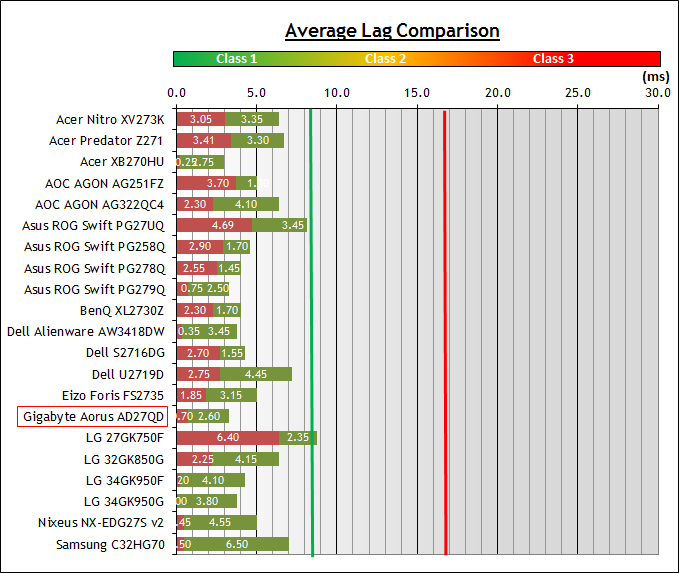
That's processing time + pixel response time measured across a handful of monitors. None of them are higher than 9ms. I have no idea where you got 30ms from? Or even what you're talking about at all. Are you exclusively talking about bottom of the barrel monitors here? Even IPS panels are being driven at 144hz these days and adaptive vsync is increasingly everywhere. Nobody is tolerating being slow?
You skipped the "in a new resolution" part. I'm talking about mode switch time. Change resolutions or swap an input on your monitor and watch it dance for a few seconds trying to "resync" in a digital environment where AT MOST you need to wait through one frame of data to find the right timings.
Yeah, the fact that it's not a single frame but, in fact, like 1 to 3 seconds to switch resolutions is absolutely insane. Trying to watch a PC bios boot on my new-ish monitor is an exercise in frustration—it spends more time off than on!
what are you walking about? OP just used 30 ms as example, replace it with 9 ms or 3 ms or whatever the example of a new resolution from OP still works..
> replace it with 9 ms or 3 ms or whatever the example of a new resolution from OP still works
No, it doesn't. I missed that they were talking about mode switch, but if the mode switch happened in 9ms the OP's example doesn't work anymore because the switch becomes faster than refresh rate.
In an ideal world it would only take one frame to switch resolutions, and even if the frame time is usually 16.66ms, it is sometimes faster than that. Since mostly what a monitor needs to do is resample the image from the source resolution to destination resolution, and possibly composite in the UI for adjusting the settings, it seems quite possible to implement. I'm sure if we actually looked at what all the layers are doing (X, video drivers, PCIe commands, etc) then we would probably be pretty horrified. Hacks and work-arounds and backwards compatibility at every level.
I've been using dual monitors for years (on Windows and Ubuntu) and I can't say I've ever had this problem. As long as the monitors are plugged into the video card, the OS recognizes both of them regardless of whether they're powered on.
I had such a problem. When Windows sends monitors to sleep state or monitor is powered off, monitors on DisplayPort connections send hot-plug event and are removed from the system. Windows then moves windows and icons onto remaining monitors.
NVIDIA firmware update [0] solved the problem for me. It seems they ditched the naughty part of DisplayPort standard for good and stopped passing hot-plug events to OS.
This did not help in my case. I have 3 DisplayPort 1.2 monitors, and half of the open windows get still tossed around randomly when the monitors wake from sleep, or when the whole PC wakes from sleep.
I'm in the same boat with my Dell P2210t- it's DisplayPort connection "disconnects" the screen, which is really annoying when you're trying to operate remotely and your config doesn't match its anymore.
A couple years ago the other option was to dump the EDID of the connected monitor (while it was on of course) using Nvidia's display software and then set the EDID data using the same software (overriding the EDID which would apparently get cleared when the monitor sent its hotplug event). If you ever actually removed the monitor you'd have to go remove the EDID data.
I think it depends on the connection you use. If I turn off one of my monitors connected via DisplayPort, Windows 10 immediately moves everything to the monitors that are still on. My last computer, with monitors connected via DVI did not do this.
I actually wish my laptop did this. I constantly have issues with some windows staying open on the second monitor after unplugging them both from my laptop.
Sometimes I can't get to them at all on the laptop screen without forcing it closed and reopening.
FYI in Windows if you can give the correct window focus (via taskbar or alt-tab) you can move them between screens with [win] + [shift] + [left/right arrow].
The regular [win] + [left/right] for snapping to 1/2 screen positions will also move it across screens if you hit it repeatedly.
Alternately the old-school variation (works since at least Windows 3.11): [alt] + [space] to open upper-left corner menu, [m] to move, then [arrow keys] to move the window around.
Once you've started this process, I believe you can just move the mouse (without clicking) to move the window as well. This tends to be faster than using the arrow keys, especially at modern display resolutions.
this is the workaround I use but it's super annoying. I have two displays at work but I switch the second one between two different computers. inevitably windows will remember the last location of some modal dialog and spawn it on the disconnected monitor, blocking the main application until I figure out whether it froze or there's a hidden dialog window on the other screen.
That's a Windows OS issue and it drives me crazy too, I raised an issue for it on the official Windows 10 feedback site, will try to find & post the link for it later, can't right now...
My most popular SuperUser question[0] (as well as Googling) revealed that many people have this problem with DisplayPort connections in Windows 7/10, although Windows 10 seems to have patched the problem to some degree with a relatively recent update (within the last couple months) - my icons are still moved to HDMI monitors when disabling a DP monitor, but positions are restored as long as I turn on all DP monitors in rapid succession... and in the correct order.
pre windows 10 you could disable HDMI and DP handling of the monitor detect signal.
Sadly MS figured we all wanted to have to shit move around as soon as you use a KVM.
(Also, there's usually a 90% chance that windows will not correctly handle the monitor reconnecting without having to either power cycle the monitor or using the video card's 'really truly scan for monitor changes' feature.)
That is a software decision. The nice thing about DisplayPort is that now we can find out if the monitor is on or off and connected or not. It is software's decision to move everything away when the monitor is off but still plugged. I agree this is a bad decision.
This is a pretty common occurrence for me on macOS with external monitors. I have thunderbolt going to a dock, then displayport from the dock to the monitors.
Waking from sleep will periodically just not find a monitor at all, or they will come up with the wrong positioning (left and right swapped). If I turn a monitor off, the other one (and the laptop) do some sort of resync operation that interrupts the display. It's annoying, but not something I would expect the industry to consider a priority; I'm not really sure it's a monitor issue at all.
I have the same problem! My 2018 MBP can't seem to communicate with my Dell U3415W monitor reliably at all. Sometimes the monitor comes on when I touch the keyboard and everything is fine. Sometimes I have to "fake" a sleep cycle by shoving the mouse into the corner of the screen. And sometimes I have to go through a whole process of turning the monitor off/on, opening the laptop lid, disconnecting the Thunderbolt cable, and anything else I can think of. sigh it seems like this shouldn't be a problem in 2019.
I just started using triple monitors, one is a TV that sits behind me turned off most of the time, but still active enough to not be considered unplugged. When I physically unplug a monitor, Windows loves to put all the windows on the TV desktop, resize them down to the resolution of the TV, and then proceeds to do stupid things like open all new instances of File Explorer in the TV desktop.
So yeah, it's better than when off really meant off and ports lacked cable detection.
It's terrible on mac. I constantly have one monitor that just refuses to show content until I unplug/replug multiple times or open/close the laptop lid. It's really silly how long this has been a problem and Apple hasn't touched it.
I've had no problems when on a desktop with both monitors plugged into similar interfaces. When you've got one on VGA and one on DisplayPort, or a local laptop display and a VGA on a dock and a DisplayPort also on the dock...it gets confused. Use seems to have largely corrected the VGA monitor + laptop combination, that usually works OK, but digital/daisy-chained combinations with laptops and docks are definitely buggy.
That sounds like an OS and Driver issue not a DP/HDMI standards issue. It seems like in an effort to be as quick as possible (and backward compatible with VGA adapters?) this problem has persisted for years. I've fixed mine by setting configurations away from auto/default, but updating drivers will often force me to do it again.
Don't think it's the hardware that's pushing 20-80Gb/s through 10ft of cable causing the issue... they don't specify OS/driver interactions. They just report available resolutions/rates in their PID and display on SleepOut command from the host register/packet interface.
Maybe I'm just old-fashioned, but I much prefer the days of VGA/pre-VGA where software neither knew nor cared whether you had a monitor plugged in --- if the output on the GPU is enabled, then it will output video until/unless you disable it, end of story. None of this new "trying to be smart" complication that just leads to more weird and irritating failure modes.
I wonder if at least part of this is for DRM reasons, because having an always-on and "unauthenticated" video signal output does tends to frighten those IP control-freaks.
I do agree with all the others here that the time newer monitors take to sync to the signal is horribly long. CRTs and some older LCDs were basically instant (although the latter would sometimes auto-adjust on signal changes, meaning a slightly unstable display, at least it was still somewhat readable and visible --- crucial for reading things like BIOS screens, for example.)
>I wonder if at least part of this is for DRM reasons, because having an always-on and "unauthenticated" video signal output does tends to frighten those IP control-freaks.
This problem drove me absolutely crazy on my macbooks. When i step away from my laptop with external monitor connected, it will go to sleeep and when it wakes up it forgets for a minute that it has a monitor connected, and when it finally realizes it, all the windows are stacked on a MacBook screen, and external monitor is empty. Thankfully I found a “stay” app, that saved me from going completely nuts: https://cordlessdog.com/stay/
I had to read your comment several time as well as some replies before I understood the problem you're talking about. Turns out that it's never been a real problem for me because I've been using tiling window managers with placement rules for a long time, so basically I configure once "when I have n monitors I want that layout" and I'm done.
I fully understand that tiling WM are not and will never be mainstream, so finding a general solution would be desirable, but I guess for a tech-savvy crowd like HN I want to proselytize tiling WMs a bit. Every time I have to use a regular "hey here are a stack of overlapping windows, have fun" destop I'm genuinely frustrated. It's nice when you're working on a new flow with new apps you're unfamiliar with but once you've got your development "stack" figured out I couldn't imagine coding in an environment where I can't switch to my editor, terminal, browser with a single non-context sensitive command, regardless of where I am.
I suppose just having virtual desktops can be a decent enough compromise (put your editor in a virtual desktop, your browser in an other etc...) but as far as I know even that is relatively uncommon outside of linux DEs.
I programmed the blue little button on my thinkpad to change i3 layout to/from external monitor. Works great for me, as it allows me to have the monitor connected to several machines.
Hehe, currently I have that problem on steroids: One of my two monitors is a bit broken. Every time I turn it on, it takes about 5 minutes until it finally works. But during those first five minutes, it constantly turns off and on again (about once in 2 seconds).
You can (should) do this at a lower level by having the physical layer electrically detect that both ends of a cable are plugged in (bonus points for detecting the type of thing on the other end). Can be done as simply as testing for varying resistance levels between pairs of pins. USB does this for detecting OTG master/slave relationships for example. I think DVI also does this in some way. I remember having to do something to the plugs to get Linux to enable the GPUs in my mining days.
This exists in HDMI and I'm pretty sure it has to exist in newer standards. Generally the problem is that figuring out that something is plugged is not enough, you also need to know what is plugged, what resolutions it supports etc...
I don't know how DP does it but previously there was a good old I2C link in the cable that was used to figure out what the screen supported[1]. You only needed an I2C EPROM on the other hand containing the various modes. Without this the computer on the other end can't really prepare itself properly, preallocate the framebuffers etc...
Since the EPROM requires very little energy it might even work if the monitor is not powered, just using the +5V coming from the HDMI cable.
>I remember having to do something to the plugs to get Linux to enable the GPUs in my mining days.
You also have to do this with certain desktop streaming solutions if the host PC doesn't have a display. You can buy fake HDMI connectors that are just a cap over the HDMI port to trick the video card into thinking there is a display attached.
Especially if you have a remote setup, when it tries to follow the shuffle dance and resizes, steals focus gets minimized, tries to stay in top and then realises it is on the wrong monitor so it does it all again.
I just close my eyes and think of the moon landing. One day we can both land on the moon and have monitors that allows windows to keep the same position.
Or just let the user resize the virtual desktop manually since they probably know what's going on in real life better than the computer. (this is how it works at least on the OS on my laptop and I've never had an issue with it.) Also, don't move the user's windows around unless they ask you to, WMs that do that get uninstalled immediately from my laptop.
I became so frustrated with this that recently I setup a Task Scheduler item to overwrite the group policy display settings to "Never sleep", every 1 minute, forever.
I still have to move them back once in the morning when I unhibernate, but it's better than 5 times a day.
It would be really great if someone could figure this out.
Linux works fine: I use awesome as window manager and xrandr for setting up monitors, and nothing changes when I unplug HDMI or DP. The problem seems to be with Gnome/KDE/etc.
The computer's ability to reorganize windows is independent of whether the monitor is on or off. For outputs like HDMI we don't even know if it's on or of, we only know whether the cable is connected.
What you're complaining about is entirely a software problem. No improvements to display standards will move the situation forward.
By the way, if you're using Linux, consider switching your desktop environment.
I am pretty sure that HDMI CEC has a way to enumerate the connected devices and see if there's anyone alive on the other end of a cable. Assuming the other end also does CEC.
Now, if only we could convince PC graphics manufacturers to support CEC instead of ignoring it. It seems the only people who do care are the little set-top boxes that run Nvidia Tegra or Qualcomm chips.
Honestly, that's just the garbage Linux desktop. The kernel has learned a lot of new tricks (atomic kernel mode setting) for frame perfect display, but it needs hardware and much more importantly software support to use it. At least wayland is moving in that direction.
Realistically I hope they work solidly through USB-C. I'm tired of piling up expensive high quality monitors I can't use because they keep changing the connections every 3 or so years.
And they really need to have larger displays 30"+ for anything 4K and beyond. There's not much point to a 27" 4K monitor if you have to double the scaling just to read anything. 8K at 27" would be a complete waste.
So far the earlier versions of DisplayPort have worked quite well as a USB-C alt mode so I am hopeful.
I strongly disagree that higher resolutions are not interesting on smaller sized displays. I personally find 21.5 inch to be the sweet spot for 4K and welcome the better support for higher resolution so displays in the 24-30 inch range can more easily support 220+dpi, higher refresh rates, and HDR.
What exactly do you gain at such resolutions on a small screen? Unless you put it right in front of you to see pixels close, you probably won't even see any difference.
The main thing you gain is crisp and legible small point text for displaying large amounts of code, terminal outputs, etc without taking up large amounts of desk space. I have both standard DPI (~110) and higher dpi (180-220) displays all sitting next to each other at my desk right now. The high res ones look drastically better and are much easier on the eyes. It is quite noticeable.
This resolution is not particularly crazy either, it is the standard DPI of all of Apple's gear for the last 6 years or so and much lower resolution than most tablets & phones. One of the bottlenecks for moving this tech beyond Apple laptops and all-in-ones (of which I am not a huge fan) has been the lack of standard external connections with enough bandwidth for these displays.
This. After reading or entering text for hours, it’s not so bad with a super sharp 4K 27” display. When I had a 1080p display of the same size, my eyes would often feel ‘tired’ at the end of a working day.
And now whenever I use my wife’s older laptop with a non-retina display, it feels like I’m looking at some 8 bit artwork!
I'd be okay with a 36-38" 4K without scaling, would love 8K at 36-38" ... I don't know why I can't get a monitor that size at anything other than 1440p. Currently using a 42" 4K, but the physical size is a bit too big. My vision isn't great, but 2x:8k:38" would be perfect imho.
The reason for desktops is rather simple. GPUs aren't there yet to support such high resolutions with high framerates at the same time. Since it's too expensive to have one monitor for each use case (one for text, one for video, one for games etc.), they provide some middle ground.
I'd take high refrersh rate with medium resolution (2.5K or something) over high resolution with low refresh rate.
So it has nothing to do with inertia, there are multiple reasons involved.
Outside of gaming, I don't buy this. You don't need an exceptionally powerful GPU to render web pages at 4K; the fact that there are 4K phones out there is proof that this isn't true.
Inertia and general lack of demand is a much better explanation. Most people either haven't experienced high-DPI monitors or just don't care that much about their PCs.
> You don't need an exceptionally powerful GPU to render web pages at 4K; the fact that there are 4K phones out there is proof that this isn't true.
idk whether the the GPU is the limiting factor, but browsing gif heavy subreddits on a 4K display brings my computer to its knees. I have a haswell i5 @ 4.3GHz and a 1080ti so I don't think my machine is underpowered.
I think one issue you are overlooking is cost of the panel itself. There's a huge difference in price between a ~200-300ppi panel that's 4.7 diagonal inches vs a laptop display (13-15 DI) and a "standard" size desktop monitor (22-27 DI). Add in the requirements of acceptable brightness and it gets expensive fast.
You're right, but I think this is mostly a chicken-and-egg problem; the displays are expensive because there isn't much demand for them, and demand is low partly because of the high cost. Once we reach a turning point (which hopefully will be accelerated by the release of the new Mac Pro monitor), high-resolution panel prices will drop pretty quickly.
For comparison, people said the same thing about IPS panels (and it was true for a long time), but these days you can get a decent IPS panel for barely more than the equivalent TN.
> the fact that there are 4K phones out there is proof that this isn't true.
Going to nitpick on this - 4K phones don't actually render at 4K. They only displayed video at 4K, and rendered at half resolution. But you're otherwise correct that you don't really need a power GPU to do basic UI work at 4K. Or rather, that even low-end GPUs these days are fairly powerful.
Gaming is a big use case for monitor makers, so they can't ignore it.
But it affects non gaming scenarios too. Static text is fine. But try scrolling that sharp text, or move something on the screen. Low refresh rate - more artifacts (motion blur, ghosting etc.). You'd see very clear difference with high refresh rate ones.
So resolution is not everything when it comes to monitors. For anything dynamic, refresh rate is more important.
I never said resolution is everything—in fact, I personally chose a high refresh rate over a 4K resolution for my recent monitor upgrade. But to say "it has nothing to do with inertia" is simply wrong and ignores the lack of demand for monitors with high resolutions/refresh rates.
I mentioned above, that GPUs are the limiting factor still, to effectively use both high refresh rate and high resolutions at the same time in all use cases. That's not inertia, rather a current limitation. That's why there is more demand for something in between still. I.e. GPUs didn't even catch up to 4K / 144 Hz yet (gaming use case is the major driver). Once they do, demand will increase.
4k @ 120hz already exists. It's expensive, but you've been able to buy it for a while now. For example the ASUS ROG Swift PG27UQ (ignore the 144hz nonsense, that's at 4:2:2 - you'll get 120hz 8bit at 4:4:4 though, and 100hz 4:4:4 10-bit HDR)
You don't read it directly, but you still glance at it to see where to stop, and you get a lot more irritation when you glance at the ghosting or over-blurred text. High refresh rate gives you a lot more smoothness.
Text is sharper, and diagrams with fine lines. PDFs using the standard Computer Modern font look much better onscreen on the retina imac in my office than the mid-2011 imac at home.
On top of people mentioning text, I'll add chat emotes to the discussion. If you use anything like Twitch chat, it's filled with custom emotes you've never seen before. I can read text without each character having an abundance of pixels. Similarly sized icons turn to blobs at that size. High DPI makes those icons very clear even when tiny. I notice a huge difference between my 1080p monitor, my phone, and retina mbp.
My vision relatively sucks... so I don't get as much from it... I run 4k @ 42" at home, and it works very well for me. I think 36-38" 4K might be a bit better, but wouldn't gain much from smaller pixels, though font/image scaling is definitely smoother on the kid's 28" 4K @ 150%
4k at 21 inches? I'm using a 4k screen at I think 31" and I have to scale everything to read the screen. My dream is a 43" 4k monitor with no scaling.
But 1440p at 21" I think would be great. Personally I only use 1080p screens as secondary monitors, and would never go back to 1080p for my primary display.
“No scaling” is a state of mind. It’s a fiction we hold onto from our purely bitmapped, pixel art past. If your OS doesn’t adapt to high DPI monitors cleanly, change your OS.
The people who say "No Scaling" mean that they want to use screen to fit more things. It is not state of mind about past pixels, but about how much stuff you can fit on the screen. how many lines of code. How many sidebars in your utilities, etc.
People who say "Scaling" are a different breed. Some like it because for them smoother fonts are more readable. To others, scaling presents ability map physical dimensions to screen.
Saying this, I agree that OS and software has to support alternative scalings, and ability to make things larger or smaller. I wish we could just pinch zoom apps on Windows and Linux.
People have different preferences for how big items on the screen should be.
But everyone will take more DPI if you offer it.
Nobody is actually for or against scaling itself. It only becomes a question of scaling or not if you artificially lock in a screen beforehand, and that screen is in a certain DPI range. If you used a same-size 8k screen you'd have basically nobody calling for "no scaling", instead you'd have arguments like 2x vs. 3x vs. 4x.
Exactly... if my 42" was 8K instead of 4K, I'd probably just go 2x and live at that. I do like the slightly smoother fonts, but really like effectively 4x what a 1080p native display at 1x gives, without borders/lines etc.
Even if the OS supports it, many apps still write their own UI primitives and won't scale with the OS scaling, or when they do, it's not uniform so the text is either obnoxiously huge, or the UI affordances are way too small.
Working with a larger screen without scaling makes this problem go away. I personally have 2 x 4K monitors at 32" and find it quite ideal.
The fact that some apps get it wrong isn't a great justification for making all the other well-behaved apps look worse. Just add an option to scale specific apps in the window manager (faking the screen resolution, DPI, etc.) and let everything else run at full resolution.
The only thing macOS does is downscaling by a factor of 2 the oversized rendering resolution (virtual display on X server). For certain dpi it works fine, for certain it would blur everything (i.e. the screen I use atm is 24" 4K with 185 ppi).
Windows 10 has no problems rendering on ANY DPI, certain apps and frameworks ignore it though which is not a problem of OS.
Downscaling the screen at "retina" resolutions works way better than your intuitions assume. I thought it would be terrible and ugly, but I was wrong. And I'm normally super picky about things being pixel-perfect.
The way macOS does it is perfect 99 percent of the time—and it guarantees no weirdness when app developers have differing ideas about how their app should react to scaling. Apple got this one right and everyone else should just copy them.
If you have a high-res, large monitor, you want to arrange your windows like a grid. You don't want to actually use Google Chrome at full 4k with no scaling across the entire screen.
I mostly grid at 42" (moom is awesome)... still have to move my head. The mac/ubuntu top menu is a bit annoying on a really big display. Still prefer it to a couple smaller screens.
> The problem is that at screen sizes less than 30" it's basically impossible to read text at 4k. Even at 31" it's a bit small.
I have a laptop with a 12" 4k screen. I can read it just fine. I do scale it 200%, but that just means I would be able to read text just fine at 24" 4k with no scaling.
It's all preference and how well the OS handles it. I think everyone can agree that the are still issues to work through on the OS side w.r.t. display scaling.
Edit: I misunderstood your last comment. Maybe it isn't the OS's fault when programs don't scale well... but the OS should have an override that lies to the program to force scaling. Hacky though that may be, it would work well, at least for an even 200% scale factor.
Apple was selling these in store until not long ago. Should cover that use case (4 HD screens) fine, but the pixel density is terrible for using at scaled 4K.
I think what you have now (4K @ 31") is the perfect compromise. It's borderline retina, so while things do get slightly better at a higher density, the improvement is much less noticeable than the improvement from non-retina to borderline-retina.
The density is also such that if you turn off scaling it's still borderline usable, for the once in a blue moon situation you have to run an app that misbehaves while scaled.
I had the exact same dream, which is why I bought a 4K 43" monitor. Then I found out that it was so big I had to sit further away, forcing me to scale some things up so they are readable again, though not everything (DE settings are still at 100%, but e.g. code font is at ~120% and HN is at 150%).
That said, I'm very happy with my purchase. The only thing I would probably change is to get a different model (sadly, it was the only available 43" 4K 60fps model in my country at the time of purchase).
Yes but with 200% scaling you now only have the screen real-estate of a 1080p screen.
At 4k I can have 4x 1080p windows open and visible at the same time.
At 1080p at most I can have two windows open side by side. Some programs will fit into a quandrant at 1080p, but others wont. For example, at 1080p you can have 4x task managers open, but spotify/discord won't fit in the quandrants.
I run a 43" 4K Dell at work, no scaling. It is sweet. I can either fit 10 full pages of a Word document simultaneously, or I can tile 6 large terminal windows and output windows all together.
Actually I have pretty bad eyesight, so I wear glasses all the time. But maybe that is the key, maybe it's more of a problem for people who have very slight near- or far-sightedness so they don't wear glasses etc., but the really fine detail is hard to see.
I have a 31.5" 4K display that I use at native resolution, and while I love having all the screen real estate, I hate the jaggies. The rest of my time I spend looking at a 15" MacBook Pro or iPhone retina display, and having everything be so pixelated really distracts me and makes text harder to read.
I would love a 31" display at something closer to 8K resolution so I can run it at 2x scaling and get true retina.
If you need scaling at 31"... How is your vision? Do you use glasses? Or do you sit further away from the display? I had a friend who thought native 4K at 30" was too small, but it turned out he actually needed glasses, and once he got a prescription he joined my side.
Sitting behind at 43' 4K monitor without scaling and it works great. 4x 1080p in one screen without seams is soo good.
Benefits:
- You get so much screen space. You can fit so many thing on one screen. There is now space for 20 icons vertially on my desktop (not that I use the desktop much, but consider it more of something to compare to).
- You move your head more, as you don't have your entire screen in focus. Same goes for multi-monitor setups.
- No seam in your 4x1080p screens.
Some caveats:
- You'll miss notifications. My field-of-view is not good enough to see the small popup in the lower-left/right of windows. I wish I got more notification in the center of my screen.
- If you use it as a windows monitor, you will notice color/blurry reflections of the desk in front of you, making it harder to read the bottom 2% of the screen when you are looking at the center. Usually, this is where your taskbar is. Solution: Move the taskbar to the top.
- You will still overlap your windows. Most of the time you will just increase the size of your editors/browsers to fit more content in those. I think my browser is currently larger than a 1080p screen, just because I read it a lot and it is such an important part of the screen. You do however get so much more content in your editors/browsers.
- Getting headaches and eye-strain? Turn down the contrast and brightness by a lot. You are starting into an even bigger 'lamp' than usual, so save your eyes. On 1080p I usually work around 40-50 brightness and contrast, while on this 4K they are both on 30.
I still wish I had something smaller though, but there simply are no developer 4k screens in the range of 33' to 38'. I do not want ultrawide, nor pay +2k so I can read my lines of code in the most color-accurate way possible.
How close are you sitting to this 43" 4k? Retina is a function of viewing distance. I've been enjoying a couple hundred dollar 4k 60hz 42" seiki for years, it's basically the equivalent of stacking 4 "traditionally sized" 1080ps together and eliminating the bezel. I wouldn't use it for detailed graphics work due to not so great color fidelity (though there are better models now), but everything else, for the price, mwah. It is "retina" at 33 inches. Admittedly I'm often closer than that, but not by much, and frequently I'm further away.
24" 1920x1200 is not bad. 8K is still a massive strain on hardware so I'm planning to get something like 32" 4K. Retina is nice, but real estate is useful.
24 inch 1920x1200 is ~94 PPI - this is pretty crappy by modern standards and will result in the dreaded “jaggies”. Great if you can live with this, but one shouldn’t be surprised that many people won’t.
100 PPI is what we typically had on good monitors in the late 90s, it’s 20 years later now!
With 200% scaling you now only have the screen real-estate of a 1080p screen.
At 4k I can have 4x 1080p windows open and visible at the same time.
At 1080p at most I can have two windows open side by side. Some programs will fit into a quandrant at 1080p, but others wont. For example, at 1080p you can have 4x task managers open, but spotify/discord won't fit.
Also once in a blue-moon you'll find some software won't scale at all, or has issues scaling. If you only have a 21" screen then you have this tiny microscopic text you have to try to read.
running 42" 4K at home and it's pretty great, though physically a bit too big... I think 36-28" would be practically better, would have to move my head less and could see the whole screen at once. Using a pretty large desk, so it does sit back a way.
You are correct that the size of the screen has nothing to do with data rate, except often larger displays have higher resolutions (which does affect data rate).
> There's not much point to a 27" 4K monitor if you have to double the scaling just to read anything.
Of course there is! The higher pixel density means everything is significantly more crisp and easier on the eyes. Resolution is not only about how many things you can fit onto the screen.
...is there some reason you can’t get a $40 adapter instead of a new monitor every three years? I’m still using a 27” Dell display I bought seven or eight years ago; I connect it to my Mac Pro via a little box that turns one USBC connection into a couple of legacy USB ports and HDMI. I will probably be using it for at least another decade if it doesn’t break.
There are several reasons why you might not want to bother trying. I just bought a new video card so I went through this recently.
- It's possible that X->Z adapters are rare/discontinued/nonexistent/whatever, so you need to stack X->Y + Y->Z. If the adapters are active, now you need 2 more power supplies (or USB ports) just to run each display.
- There's many combinations of stacked adapters that don't work together, for various reasons, so this can involve a lot of research, and a bit of luck.
- Even if it basically works, it's common that not all features of every protocol are supported by every other protocol. I can control the brightness of one display from software (it runs directly over DVI), but not my other display (which runs over a DP->DVI adapter).
- It's also common that a lot of adapters just don't work. I've got an active adapter here that the manufacturer and retailer both swear supports dual-link DVI, but it doesn't. I eventually found a review online from someone who tore it apart and looked up the specs on the chip inside. It only supports single-link resolution. Bogus.
- There's also many passive DP->DVI adapters which claim to support dual-link, even though this is (apparently) electronically impossible. More lies.
- I have what seems to be the only working DisplayPort to dual-link DVI adapter, and it wasn't cheap (>$100). It also takes several seconds to wake up, and during that time it displays static and noise and off-color versions of my desktop. It's not the most pleasant experience.
- Newer displays are much less power-hungry than older models, so if you pay for electricity and have your displays on a lot, it's definitely cheaper to just upgrade that.
- I've also tried to convert (single-link) DVI-D to HDMI. Apparently it should be just a physical adapter, as the signals are electronically compatible in that direction. For two devices I have, when run at 1080p, the picture comes out horribly distorted. Each device supports 1080p, but when connected in this particular way, it's unwatchable. No idea why.
Any time you have to convert formats, there's potential for trouble. That's why I'm not optimistic about the new USB-C/Thunderbolt world of "we'll just encapsulate every other protocol in the world". When I've got devices and adapters strung together and it doesn't work, who do I call for support? One of Norvig's rules from PAIP was "Whenever you develop a complex data structure, develop a corresponding consistency checker". I wish I had test equipment for every port type in my house, but I don't, and that's not feasible for most people.
> There's not much point to a 27" 4K monitor if you have to double the scaling just to read anything.
I bought a nice 27" 4K display for gaming. ironically I can't actually notice any difference between (native) 1440p and 4K at that size for games, but fonts really do look a lot better with the extra density. I love writing code on that display.
- More stuff on the screen. Some people can see all the pixels of a 4K display.
or
- More detail on your stuff. Some people really enjoy crisper lines.
There is no point to scaling one 1080p-sized-pixel to be represented by four 4k-sized-pixels, à la a digital zoom on a camera, if that's what you mean.
I personally immensely enjoy my 27" 4K monitor at 1:1 scaling. I finally can have my entire field of view filled with letters the size of a typical book / newspaper font, with smooth shapes.
I frankly do not understand the idea of having a huge monitor far away from eyes, so that the angular dimensions of elements on it are the same as on a smaller screen at a book-reading distance. Well, maybe it's easier for some people to focus at a longer distance — but then more people would hold their phones at the stretched arm's length, not 1.5ft away.
That's just a press release but it claims that it uses the thunderbolt 3 PHY with Type C connectors (and bandwidth is within the TB3 envelope) so it appears those cables will continue to work.
Here’s the headline and lede, which I thought were a pretty effective TLDR:
> VESA PUBLISHES DISPLAYPORT™ 2.0 VIDEO STANDARD ENABLING SUPPORT FOR BEYOND-8K RESOLUTIONS, HIGHER REFRESH RATES FOR 4K/HDR AND VIRTUAL REALITY APPLICATIONS
DisplayPort 2.0 enables up to 3X increase in video bandwidth performance (max payload of 77.37 Gbps); new built-in features enable improved user experience, greater flexibility and improved power efficiency
This is all nice and dandy but there is not even a DP 1.3 MST hub on the market ...
Of course, that might be because Intel IGP is still stuck on DP 1.2 and so an overwhelming majority of laptops are DP 1.2 only as well. But for video cards, we have been there for three years now: nVidia went full DP 1.4 with Pascal in 2016 AMD has been DisplayPort 1.4 since Polaris at least in 2016 as well.
Anandtech mentioned in their coverage that the previous versions of Displayport "required that the branch device be capable of decoding a DisplayPort bitstream", this new version apparently drops this requirement which should make daisy-chaining or hub devices much less complex.
Thunderbolt 3 allows 40 Gbps in each direction using two 20 Gbps channels for each direction. As a protocol driving a display is mainly unidirectional, DisplayPort 2.0 simply uses all four channel for transmitting the data to the display, resulting in 80 Gbps. So they're not squeezing more data through the connector and the cables than Thunderbolt 3 already does, but simply do it in one direction only.
Ah, that makes sense. There's probably still room in the copper for more than 20 Gbps per lane, if they switch to an encoding with more than one voltage level, like PAM4.
The USB-C connector physically supports 20 Gbit/s per pin in the USB4 spec (4 pins total: 2 rx + 2 tx, that's why we say it's "40 Gbit/s" per direction). DisplayPort configures all 4 pins as tx, so as expected it achieves 4 x 20 = 80 Gbit/s.
I'd really like for PCs to send a wakeup to the TV. My AVC and ShieldTV can both wake up a TV connected for display, why can't a general computer do it? Currently using a 42" 4K high refresh TV as a monitor (would prefer 36-38" 4K).
I've resolved to just use a classic screen saver to keep the TV from shutting off, which causes total chaos when resuming from sleep.
Aside: anyone else notice how hard it is to actually use a screensaver these days. Linux desktops have removed it from in the box mode, and windows has totally obscured it away from you.
I just bought an Intel NUC and this is one of the bios options. Those are amazing little computers of you don't need a discreet GPU. It's the size of a sandwich, and I got an 8th gen i7, 16gb of DDR4, and a 500gb nvme SSD for under $600! It handles 4k HDR content flawlessly. As a computer geek of a certain age, this is mind-blowing.
I’m thinking of one of those too. Maybe with the Akasa Turing replacement case for fabless operation. It will grow in size but not much more than two coke cans on top of each other. And it’ll cool a Core i5 barely breaking a sweat. The entire case is sort of a heat sink.
but the TVs I've bought support it poorly. Either it's hard to find if they support it, and when they do they might only support it piecemeal. It's sort of age and odel dependent. I've never seen a monitor that supports HDMI-CEC.
I believe it may be CEC at the TV level, but doesn't seem to be a place on the computer for this... may have to dig through the BIOS again, but pretty sure I'd remember it.
I know I have it on my TV/AVR/ShieldTV as the volume for any of the above works as I expect.
There's a dongle that lets you inject CEC control signals into a HDMI signal from USB [1], but I haven't found a lot of programs that can hook it properly to Windows. It seems really useful if you have a media PC, though.
> Aside: anyone else notice how hard it is to actually use a screensaver these days. Linux desktops have removed it from in the box mode, and windows has totally obscured it away from you.
And rightfully so. Now that we have moved to display technologies which are not affected by burn-in, what's the point? All they do is waste energy.
If it's connected via HDMI you can actually do that. There's a package called ddccontrol. For example, here is my code to toggle my 4th monitor between hdmi and displayport (hooked up to desktop or hooked up to a client laptop - this also switches out my synergy config at the same time later in the toggle script).
At 8K, 120hz ( Pro Motion, hopefully someday on Mac ), 10bit colour, that is roughly ~145Gbps of Raw Bandwidth requirement.
At 6K, 120hz, 10bit ( Basically Pro XDR with 120Hz ), that is roughly ~88Gbps of Raw Bandwidth.
The above two scenario aren't too far off. Although a 5K / 120hz / 10bit only needs ~64Gbps. I assume in two config above they will have to use 2 x DisplayPort 2.0 ?
( That is assuming Apple will gives us Pro Motion on Mac, why they haven't done so is beyond me. And Why Windows haven't done something similar? )
So the future USB4 and DisplayPort 2.0 will both be based on Thunderbolt 3. Are there any reason why TV keep sticking to HDMI? ( NIH Syndrome? )
And since DisplayPort 2.0 essentially turn TB3 into a one way connection, does that mean there will be no more USB Pass through or Charging Laptop while using it Display?
> ( That is assuming Apple will gives us Pro Motion on Mac, why they haven't done so is beyond me. And Why Windows haven't done something similar? )
What do you mean why Windows hasn't done something similar? It's existed on Windows for longer than Apple had it in the iPad - it's called gsync or freesync, the later now being a VESA specification called "adaptive vsync." You can go have the ProMotion experience on Windows right now, and have been able to for years. There's a ton of 120hz, 144hz, and even 240hz gsync & freesync monitors on the market at a variety of sizes, resolutions, and even panel types. You can find 120hz+ monitors in IPS, VA, and TN panels, at a variety of price points.
It's worth noting that VESA DSC compression is available for DP interfaces at 2,3,4:1 allowing all of these on the announced standard. It's visually lossless even in a large screen flicker test so I think we're pretty set, except maybe for newer and more extreme daisy chaining and VR.
That is where some of the most challenging images come from... especially with white 4pt type against highly patterned backgrounds. However, frankly with a jeweler's loupe even on the most difficult images, I can't tell the difference flickering between compressed and uncompressed at 4:1. If you think about it, H264 is 100:1 compression (PNG 20:1) so it's not surprising that human eye visibility (especially at 10bit HDR and 8k) is excellent.
For a quantitative estimate, PSNR is ~40dB even on fairly extreme images, which means less that those +/-1 code for 8bit sRGB. I'd expect even better from 10bit and natural images to be >45dB.
Given what you have said, I am willing to be optimistic and no longer associate DSC with4:2:0 TV screens displaying text :)
In particular your mention of PNG reminds me that it is lossless, so the idea of "visually lossless" at a much lower ~4:1 compression ratio seems more reasonable to me now.
Not entirely sure what you mean by Pro Motion on Mac, but just for the record, something like a Mac Mini already supports monitors at 120 and 144 Hz. I had mine hooked up to a curved Samsung at 120 Hz.
No mention of "Variable Refresh Rate" which is now in HDMI 2.1. I'm really hoping once that's standardized it'll put an end to the Gsync/Freesync nonsense we're currently dealing with.
On that topic, I was a bit sad to see that USB-C alternate mode wasn't picked up as the display solution for the Pi 4. I have multiple devices that work this way, and it has been a very pleasant experience.
Its complex to implement. You need a type-C port controller that can speak the funky half-duplex 300 kHz signal of USB-PD, a set of power delivery fets, some high-speed muxes, and a little microcontroller to manage the protocol's higher layers in realtime.
http://www.ti.com/product/TPS65982 is an example of a fairly high-integration IC. Its 5USD/ea in bulk, and you still need some other supporting IC's around it, such as - I kid you not - a flash chip to hold its program code. Take a good hard look at section 9.3.4 of that manual to get a taste for how complex this gets.
They only have very reduced schematics published, but it looks like the RPi4 isn't deploying a PD solution at all. I think they are just relying on the analog signaling of Type-C. The power supply is just a "simple" type-c 5V/3A unit.
> They only have very reduced schematics published, but it looks like the RPi4 isn't deploying a PD solution at all. I think they are just relying on the analog signaling of Type-C. The power supply is just a "simple" type-c 5V/3A unit.
This is the first I've heard of the RPi 4 not having PD -- could you point me to the specs you saw? I searched around a bit but couldn't find anything either way.
You have to dig a bit. I got there via Main Page -> scroll to very bottom -> documentation -> Hardware -> Raspberry Pi -> Schematics -> Raspberry Pi 4 Model B
You can see the fixed resistors attached to the CC lines for basic Type-C analog signaling, and a simple PD_SENSE line connected to the power supply IC.
Ah, wow, that's definitely a bit of digging! Thank you very much; I had my own suspicions due to the recommended power supply but it's nice to have more concrete evidence. :)
No. You need to be able to speak PD in order to figure out that the other end has VESA capabilities.
After negotiating PD, you then ask what other vendor-specific things the other end supports. If it answers back with the code assigned to VESA, then you proceed to negotiate how the various differential pairs are wired up. There are valid configurations that don't use USB at all, but repurpose the superspeed differential pairs as additional displayport pairs.
Once the host knows what the display supports, the host can configure the high-speed mux and send a displayport hotplug detect event to the SoC. After that its all on the SoC.
In principle, you could use an existing realtime unit on the SoC to do all of this, assuming that it was electrically capable of the whole shebang. In practice, I don't know that any SoC's do it yet - all of those steps are performed by either the TCPC or an embedded controller attached to the TCPC. That's likely to change eventually, though.
Thank you for these insightful comments. So, it seems that USB PD doesn't seem to be ready to become mainstream yet...
And I had not realized you needed PD capabilities to support alternate mode. However, the protocol itself doesn't seem that complicated to manage with a microcontroller and a few discreet transistors, right?
I can easily see it become more common in the future, and hopefully the open source silicon ecosystem (spearheaded by RISC-V) will make the necessary IP ubiquitous.
The remaining issue I can see is with the high-speed muxes, though if the raspberry is already capable of HDMI, I am not sure why the SoC couldn't handle those directly as well (though if they need to support 20V I can see it being difficult to do without external components).
Another comment in the tree showed that some Rockchip SOCs do have most of the requisite widgets built-in to the SoC. So the market is already moving this way. Its just not ubiquitous yet.
The protocol is described in detail in the USB-PD spec under the physical layer chapter. Its a 300 kHz biphase mark coding scheme with lots of slop available in the timing. Looks like it was designed for low-end power supplies that considered USB 1.1 to be too expensive. The PD protocol isn't horribly broken or anything. But personally, I would have preferred to see all of it managed over the classic USB D+/D- lines as a separate device profile.
The basic set of microcontroller serial peripherals (UART, SPI, I2C, etc) aren't going to handle it well, though. Maybe you could finagle a SPI device into sampling the lines, and then figure out what the bits were in software, kindof like an oversampling UART? Maybe? Or you could bit-bang via GPIOs? Not the kind of project I would be interested in. For open source work, a small FPGA would be a much better choice to work with. Its not particularly complex logic... but doing it in software is going to be very inefficient.
Well, I thought about doing it in software (bit-banging the GPIOs should probably be enough for any kind of signal at 300Hz)... I really need to read the spec, but I guess this signal is just needed for the handshake? If that's the case, you can probably afford to do it on the CPU.
As for the open source part, yeah, I was specifically thinking about open ASIC designs (whether at the RTL level, thus compilable to an FPGA, or at the layout level). The ecosystem is blooming, with open source memory compilers, as well as academic/enthusiast tools (BAG, scala, hammer-vlsi, migen) that are making great strides.
USB-C alternate mode for Displayport currently (and probably always will) requires an external port controller to negotiate the alternate mode with the other end of the cable over the configuration channel (CC) pins, and possibly a high speed mux[2] if you want USB-3.0 over the same pins as well. Simpler applications like analogue headphones or USB-C to Type A adaptor cables just use specific resistor values instead, a wise decision by the standards body IMO.
Of course, if you have that built into the SoC[3], the cost of that is reduced a lot once the IP license is covered, and makes sense for a several hundred dollar phone/laptop, though there are some extra electical requirements that come with USB-C such as tolerating 20V (in case someone plugs in a laptop adaptor that has not discharged down to 5V in time) that is hard to implement in the same silicon as the rest of the SoC, and so some external logic is almost always needed.
In addition, an actual USB-C connector is relatively expensive due to the high pin count, fine tolerances and the shape requiring use of deep-draw or metal-injection-moulding method.
Micro HDMI has much simpler interface requirements, sometimes some discrete transistors for the hot plug detect signal and a low speed level shifter for the DDC bus. The connector can be cheaper to manufacture as well as the shell can be stamped out like a Micro USB connector.
There are licensing costs[4] for HDMI, while DisplayPort is royalty free, but I reckon Broadcom can negotiate that down considerably from the published figures, and I can't see USB-C being cheaper than the listed 5 cents per device charge.
Yeah, for some reason they decided to use a completely different oddball HDMI connector to the one used in their other product with an oddball HDMI connector. So anyone with a Pi Zero and a Pi 4 now has two different annoying adapters to keep track of.
> how many hi-res (4k@60hz) monitors can I drive from a single RPi 4 ?
Just one. If you connect a second 4K monitor it drops to 4k@30
> run at 4k@60hz over USB3
No. USB 3.0 only has a maximum bandwidth of 5 Gbit/s. It takes around 15gbit/s to drive 4k@60hz 4:4:4 8bit color. That was first available in DisplayPort 1.2 which had 17gbit/s available bandwidth.
> additionally, two USB3 ports.
The USB ports are all on a single PCI-E bus with a maximum bandwidth of 4Gbit/s. So technically you don't even get full speed of a single USB3 port, much less 2.
I had an old man moment recently when I upgraded my PC and my fancy new GPU came with 1x HDMI and 3x DisplayPort adapters. My perfectly good dual monitor setup (which I'd been using with DVI cables) was suddenly obsolete.
They both handle HDMI so I ended up getting an adapter for one, but I never even thought this would be something to worry about. And I'm not sure if it's DP related but when I wake the PC from sleep one of them has a frozen image for a little while until Windows realises it has to start animating again.
VGA worked well enough for more than a decade (and still does today)
My work laptop, an HP Elitebook, has only a Displayport for political reasons (HP wanted to push Displayport adoption). Do you know what presentation infrastructure has Displayport? Absolutely nothing. The world decided upon HDMI to be the de-facto-standard.
So I am stuck carrying dongles and adaptors around (which means I will never have the one I need on hand) - or, if I am very lucky, I get a meeting room with a Clickshare device (which works reasonably well, but might be unpopular with external colleagues because it means installing some piece of software onto your laptop)
I know how standards work ... but for the sake of it, we do not need another option that brings virtually nothing to the table.
I've been having a lot of problems with DisplayPort KVMs. I have a 4K monitor and at the time of purchase, I think DisplayPort had better specs. But there are very few KVMs at the 4K resolution. The one I got was literally a switch in the sense that it didn't emulate the video and usb on the disconnected side. There seems to be lots of problems with disconnected DisplayPort devices and drivers. For Linux I found that shutting off the monitor would result in the video not coming back on unless I manually did a "xset dpms" call through ssh. In the end I now got a cheap second monitor and a USB switch for the keyboard/mouse. It just takes up a lot more space.
I've been using this[0] kvm with a 4k 60hz HDR monitor. The only problem I have with it is the mouse and keyboard emulation doesn't work with my more exotic QMK keyboard mappings and the fancy features on my Logitech mouse, but I think that would be the case on any kvm.
Edit: whoops, missed that you're looking for DP. For what it's worth I'm using HDMI for all of the above with no performance issues.
Referring to USB-C connections as "alternate mode" makes me wonder if Thunderbolt 3 will be inferior, signal-wise, to whatever physical port is being considered (was designed?) for DisplayPort 2.
Alt mode is a term used by USB to describe a USB port than can carry non USB signals (i.e. the alternate operating modes beyond USB). It's been around a while and has nothing to do with this announcement.
It appears if you use USB-C only for display data you get full resolutions. If you take some of the pairs to also run USB data over the same cable it only supports the lower resolutions (no 16k or 10k).
As far as I can tell there is still no support for touch screen displays. It is a shame that the data rate gets higher and higher but this simple feature is still missing.
Let's not go overboard about the 1Mb claim: it's an incredibly inefficient protocol. At best, you'll be able to push 200Kbps through it, and that's for writes. Reads are much slower.
A note on this, for anybody who's curious. USB-C is actually its own specification, so it's not part of the USB 3.0 series of specs. Presumably it won't be part of the USB 4.0 spec either.
a USB type-C connector actually carries a USB-2 lane, as well as carrying a couple of USB-3 lanes (and some other miscellaneous stuff). So it's not really the same category of standard.


That way we won’t have this window shuffling nonsense that has plagued multi monitor setups since we started putting pcs to sleep instead of turning them off.